Connect to AI Providers
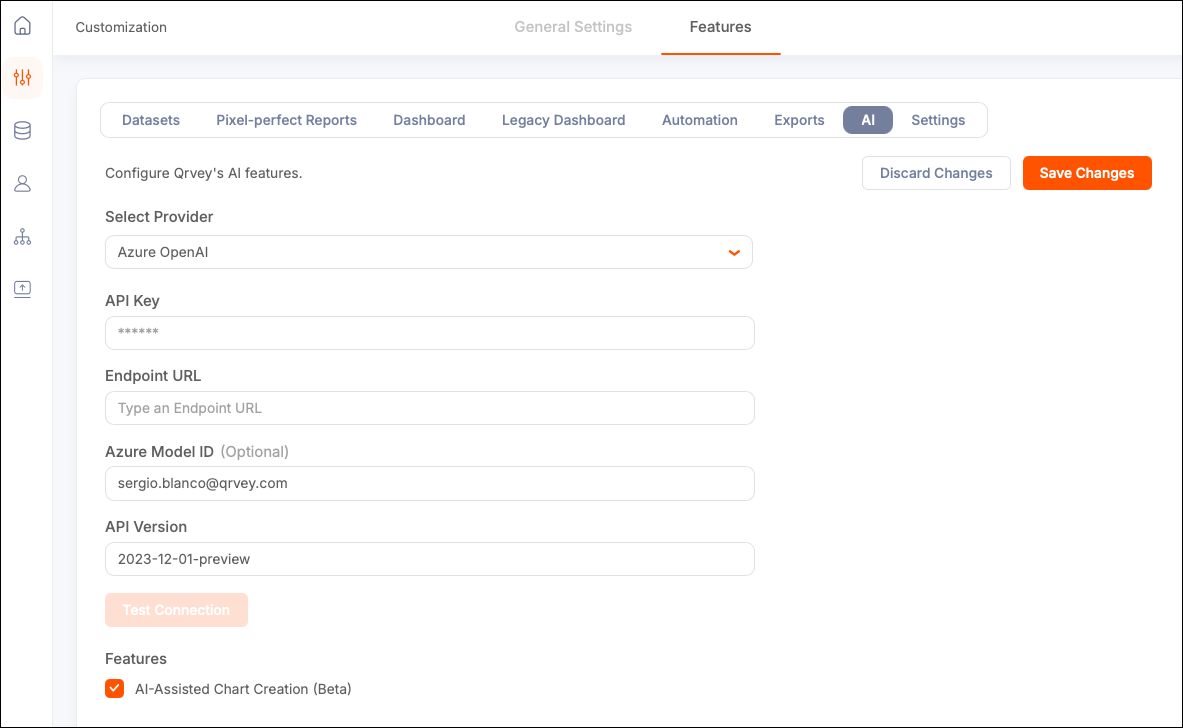
Use the Admin Center's Features tab to connect the platform to your AI provider. Qrvey can then use the provider to perform tasks such as creating charts.
Supported Providers
- OpenAI
- Azure OpenAI
- Claude in Amazon Bedrock
OpenAI
The OpenAI provider uses direct API access to GPT models. To use this provider, you need an active OpenAI account with a funded balance or an active subscription.
If you leave the Model field blank, the platform uses its default model. This can change over time.
-
Create an API Key.
a. Log into your OpenAI account.
b. Select Create new secret key. Add a descriptive name and select Create.
c. Copy the key immediately. OpenAI only displays it once.
-
Add credentials to the platform:
Field Required Task Example / Format Provider Yes Select OpenAI from the dropdown. OpenAI API Key Yes Paste the secret key you copied from the OpenAI dashboard. sk-proj-xxxxxxxxxxxxModel No GPT model to use for AI features. Common models include:
-gpt-4o- Most capable multimodal model (recommended)
-gpt-4o-mini- Faster and more cost-effective
-gpt-4-turbo- High capability with large context
-gpt-3.5-turbo- Lightweight and economical
Leave blank to use the platform default.gpt-4o -
Select Test Connection to validate your connection. A successful test confirms the key is valid and the platform can reach OpenAI.
Troubleshooting
| Issue | Resolution |
|---|---|
| Incorrect API Key | Verify there are no leading/trailing spaces when pasting. |
| Quota exceeded | Add billing credits. |
| Model not found | Verify the model name is spelled correctly and your account has access. |
Azure OpenAI
Use the Azure OpenAI Service to run OpenAI models within your Microsoft Azure subscription, with enterprise security and compliance implemented. You need an Azure account with the OpenAI service enabled.
In Azure OpenAI, you do not call the base model directly. Instead you call a Deployment Name (Deployment ID).
-
Enable the Azure OpenAI Service.
a. Log into the Azure Foundry portal.
b. Search for "Azure OpenAI" and create a new resource, or use an existing one.
c. Select a subscription, resource group, region, and pricing tier.
The deployment takes 1-3 minutes to complete.
-
Deploy a model.
a. Open your Azure OpenAI resource and select Azure OpenAI Studio.
b. Go to Deployments > Create new deployment.
c. Select a base model (for example,
gpt-4o).d. Add a deployment name (for example,
my-gpt4o). This serves as your Azure Model ID. You must use the Deployment Name as the model ID in your API calls. -
Retrieve credentials.
a. In the Azure portal, open your Azure OpenAI resource.
b. Under the Resource Management section in the left sidebar, select Keys and Endpoint.
c. Copy KEY 1 (your API Key) and the Endpoint URL. The endpoint URL is the base address for your Azure OpenAI resource.
-
Enter credentials in the platform.
Field Required Description Example / Format Provider Yes Select Azure OpenAI from the dropdown. Azure OpenAI API Key Yes One of the two API keys from the Azure portal (Keys and Endpoint section). a1b2c3d4e5f6...Endpoint URL Yes Endpoint URL from the Azure portal. Include the full URL with https://.https://my-resource.openai.azure.com/Azure Model ID No Deployment Name you set when deploying the model. Leave blank to use the platform default. my-gpt4oAPI Version Yes Azure OpenAI REST API version. The platform pre-fills a tested default. 2023-12-01-preview
Troubleshooting
| Issue | Resolution |
|---|---|
| 401 Unauthorized | API Key is incorrect. Verify it matches KEY 1 or KEY 2 from the portal. |
| 404 Not Found | Check the Endpoint URL and ensure the Model Deployment exists. |
| DeploymentNotFound | Azure Model ID doesn't match any deployment. Check exact capitalization. |
| API Version error | If you receive a version-related error, update the API Version field to the latest in the Azure OpenAI in Microsoft Foundry Models REST API reference. |
Claude in Amazon Bedrock
Amazon Bedrock lets you access Anthropic's Claude models through your existing AWS account, using AWS-native security (IAM, VPC, CloudTrail). You need an AWS account with Bedrock access enabled.
-
Enable Claude in Amazon Bedrock.
a. Log into the AWS console.
b. Navigate to Amazon Bedrock (search in the top bar).
c. Select Model access > Manage model access in the left sidebar.
d. Submit access requests for the Anthropic Claude models you need. Approval is usually immediate.
-
Create an IAM user with Bedrock permissions.
a. Go to IAM > Users > Create user.
b. Attach the policy
AmazonBedrockFullAccess(or a custom policy scoped tobedrock:InvokeModel).c. Under Security credentials, create an access key for programmatic access.
d. Download or copy the access key ID and the secret access key.
Tip: For production, IAM roles are preferable to long-lived access keys. For more information, contact your AWS administrator.
-
Enter credentials in the platform.
Field Required Description Example / Format Provider Yes Select Claude in Amazon Bedrock from the dropdown. Claude in Amazon Bedrock AWS Region Yes AWS region where Bedrock and the Claude model are available. us-east-1Access Key ID Yes AWS IAM access key ID for programmatic access. AKIAIOSFODNN7EXAMPLESecret Access Key Yes AWS IAM secret access key paired with the access key ID. wJalrXUtnFEMI/K7MDENG...Model ID No Bedrock model identifier for the Claude version to use. Supported models include:
-anthropic.claude-3-5-sonnet-20241022-v2:0— Claude 3.5 Sonnet v2 (recommended)
-anthropic.claude-3-5-haiku-20241022-v1:0— Claude 3.5 Haiku (fast, cost-effective)
-anthropic.claude-3-opus-20240229-v1:0— Claude 3 Opus (most powerful)
Leave blank for platform default. Model availability varies by AWS region. To review supported models, see Model support by AWS Region in Amazon Bedrock.anthropic.claude-3-5-sonnet-20241022-v2:0Anthropic Version No Anthropic API version header required by Bedrock. Leave blank unless instructed otherwise. bedrock-2023-05-31
Troubleshooting
| Issue | Resolution |
|---|---|
| AccessDeniedException | The IAM user does not have bedrock:InvokeModel permission, or model access was not approved. |
| UnrecognizedClientException | The access key ID or secret access key is incorrect. |
| ValidationException | Invalid Model ID format. Copy it from the Bedrock console. |
| Region mismatch | Verify the selected AWS Region matches the region where you enabled model access. |